Group the signals
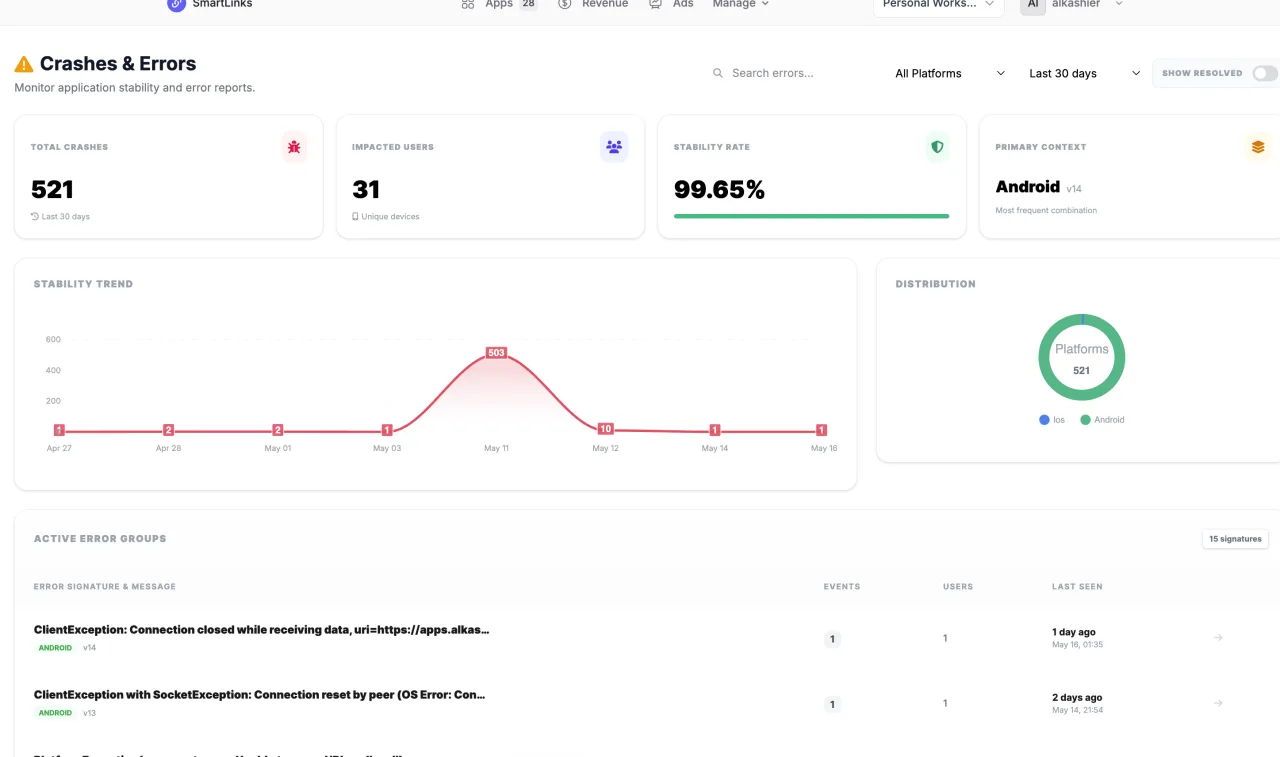
Review reported errors and crash groups so repeated failures can be investigated together.
SMARTLINKS / CRASH MONITOR
Inspect reported app crashes and errors in a dedicated quality workspace. Read the available context, identify recurring issues, and check new builds for evidence of improvement.
Your SmartLinks account. Your apps. One connected workspace.
WHAT’S INSIDE
Start with the job in front of you. These focused tools share the app context you already have in SmartLinks.
Review reported errors and crash groups so repeated failures can be investigated together.
Inspect the available app, device, and version information around an issue.
Compare reporting after a fix ships, while accounting for collection coverage and activity.
FROM IDEA TO ACTION
Crash Monitor uses your existing app and account, so the work stays connected as you move through the process.
Read the practical guide ↗Connect supported error reporting.
Inspect a reported issue and its available context.
Ship a fix through your release process and verify new evidence.
GOOD TO KNOW
Only reported failures appear. A quiet dashboard is not proof that every device is crash-free.
No. Sign in with your existing SmartLinks account and select an app you can access. Existing app ownership and team permissions still apply.
This product uses your SmartLinks plan and its feature allowances. The pricing page shows current plans that include Crash Monitor. Choosing a different suite plan changes your shared subscription; it does not add a separate subscription for this product.
Compare eligible plans →Yes, when your plan and permissions include them. Your apps and connected services stay in the same SmartLinks workspace. Some workflows need additional provider setup.
Explore the product collection →YOUR NEXT GOOD MOVE
Start with Crash Monitor. Keep the whole picture connected.
BETTER TOGETHER